Outlanders Calc is an unofficial tool for finding equipment and comparing expected values with consistent progression and battle settings in Monster Hunter Outlanders. This guide covers searching, awakenings, saving, and sharing.
Open Outlanders Calc / Read about the calculation model (Japanese)
Start here
- Check your language and HR, then find candidates in the equipment database or Skill Simulator. You can also find builds automatically from your chosen conditions.
- Select your weapon, armor, and rarity in the detailed expected-value tool.
- Set character progression, Buddy, Visages, and awakenings.
- Match skill uptime and comparison conditions, then add the result to the comparison list.
- Save the build and export a build card or JSON backup if needed.
Find equipment and skills
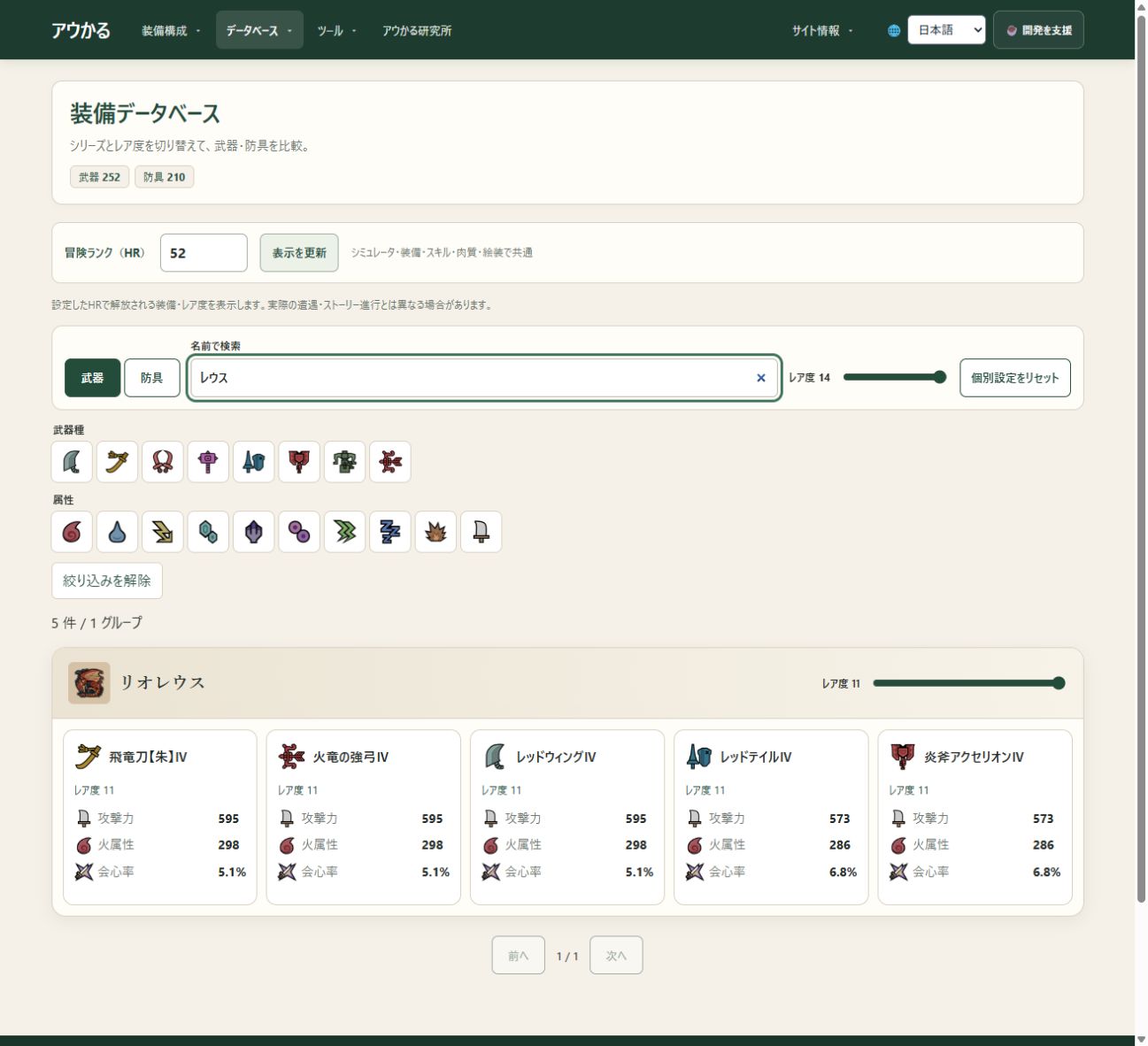
Filter the equipment database by name, series, weapon type, element, and other criteria. Available rarities depend on HR and each item's upgrade limit. If a candidate is missing, check your HR and active filters.
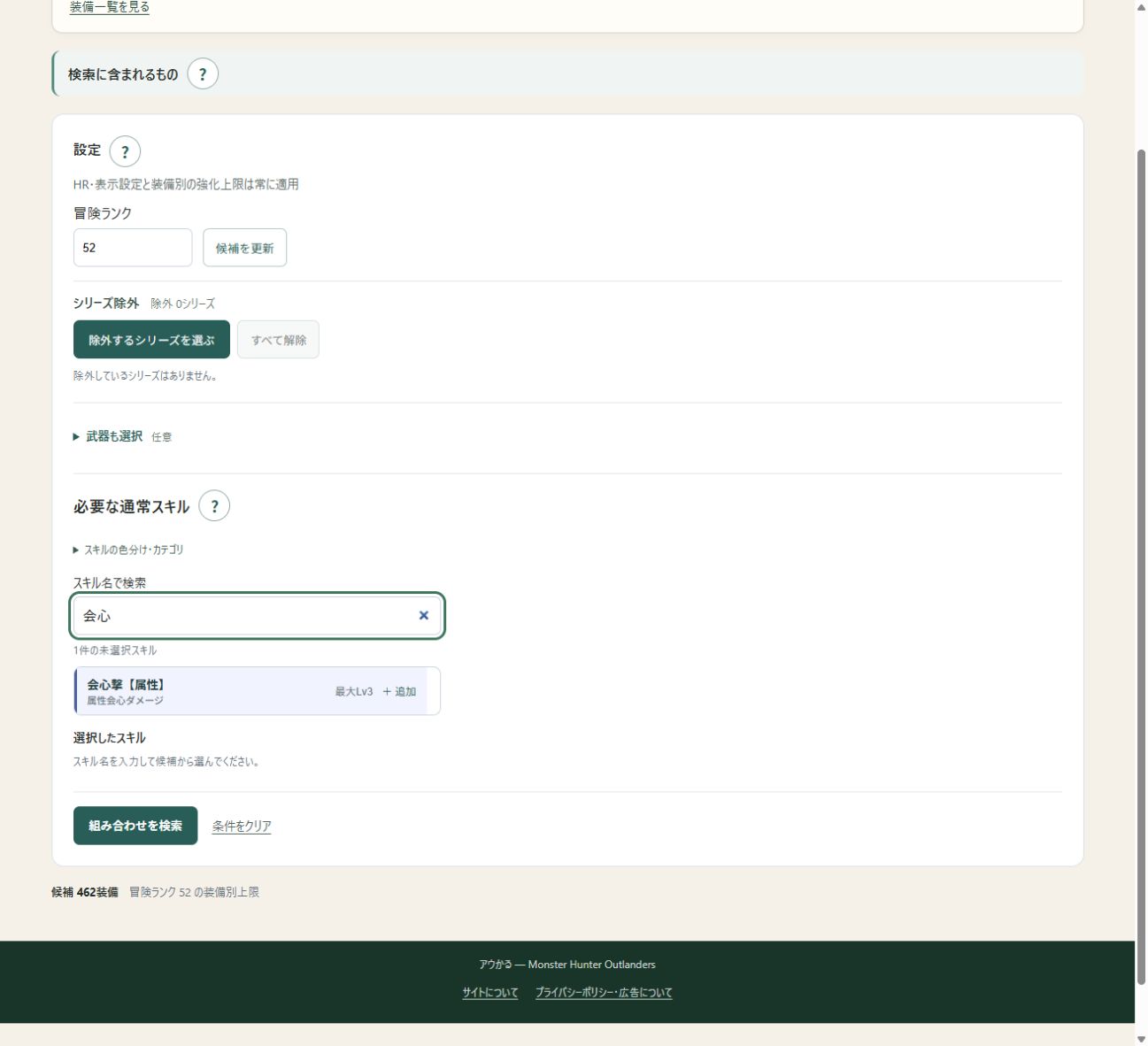
In the Skill Simulator, select the skills and levels you need to find combinations of five armor pieces. You can also exclude series or filter weapons. This searches armor skills and set effects; it does not automatically optimize awakenings, Visages, or Buddies.
Optimize equipment step by step
The manual equipment optimizer lets you choose skills and equipment candidates at each step and compare their expected values.
- Check HR, then choose a character, weapon type and element, weapon, and rarity.
- Set the physical and elemental hitzones and whether the target is Radiant.
- Adjust activation rates. Add the skills you want using the left arrow beside a candidate or the skill-name search, then adjust their levels. Open the equipment-build section and run the search again to find builds that meet those skills and levels. Select an actual equipment candidate.
- Compare Visages for the selected equipment, then press a candidate card to adopt it. You can also add your own Visage proposal manually. Open the detailed tool using “詳細期待値 ↗” and review the import. The equipment, selected Visages, physical and elemental hitzones, and Radiant setting carry over.
Visage comparisons are estimates using Legendary quality, no brush enhancements, and a total cost of 12 or less. Manually added Visage proposals are not browser-saved presets. Some buttons may be displayed in Japanese.
Find equipment builds automatically
Use the Automatic Equipment Optimizer from the Equipment Builds menu to compare weapon, armor, and Visage combinations under the same conditions. If you already know the skills you want, use Skill Simulator. To choose candidates yourself at each step, use the manual optimizer.
- Choose a character. Use the weapon type and element icons to filter the list, then select a weapon, or leave weapon selection on automatic. Set the physical and elemental hitzones, toggle Radiant for your target, and choose how many results to show (2–5).
- Set how often conditional skill and Visage effects are active. Tap a skill name to see the level-by-level table; tap inside or outside the table to close it. The tie-break checkbox favors a skill only when expected values are tied; it does not make the skill mandatory. Save frequently used settings as a preset in this browser.
- Start the search. The tool evaluates weapon and armor builds first, then Visages. Compare the expected values and equipment icons. “属属” indicates two elemental substats, and “会会” indicates two affinity substats. Check the icon details for the specific types and values.
- Use the candidate’s “詳細期待値で開く ↗” button to open the detailed expected-value tool and confirm the import. The selected build, supported activation rates, and the physical and elemental hitzones and Radiant setting used for the search carry over. Set stack counts again in the detailed tool, and review character progression and Buddy settings.
Expected values are for comparing builds, not actual damage or DPS. Some buttons may appear in Japanese. Rankings apply only to the candidates compared, not an exhaustive search of every combination. Depending on the conditions, fewer results may be available than requested.
Build a detailed comparison
Open the detailed expected-value tool and tap an equipment slot to choose a weapon or armor piece. Skills are counted at the selected rarity.
- Character progression: Set Mastery, character, Keepsake, and Engraves.
- Buddy: Select the Buddy, level, star stage, and training. The tool includes bonuses to the hunter, not the Buddy's own attack damage.
- Visages: Equip one core and four regular Visages, then adjust main stats, substats, and Resketch. Check the total cost too.
- Skill uptime: Enter the proportion of time an effect is active and its stack count where applicable. A setting of 100% assumes the effect is always active; it does not guarantee activation in the game.
- Comparison conditions: Keep hitzones, attack conditions, and the Radiant setting consistent. If you change them, make sure the results you compare still use the same conditions.
The expected value is a comparison metric using currently supported effects. It is not actual damage including motion values, or DPS. Check the on-screen items that are not applied.
Set awakening bonuses and relics
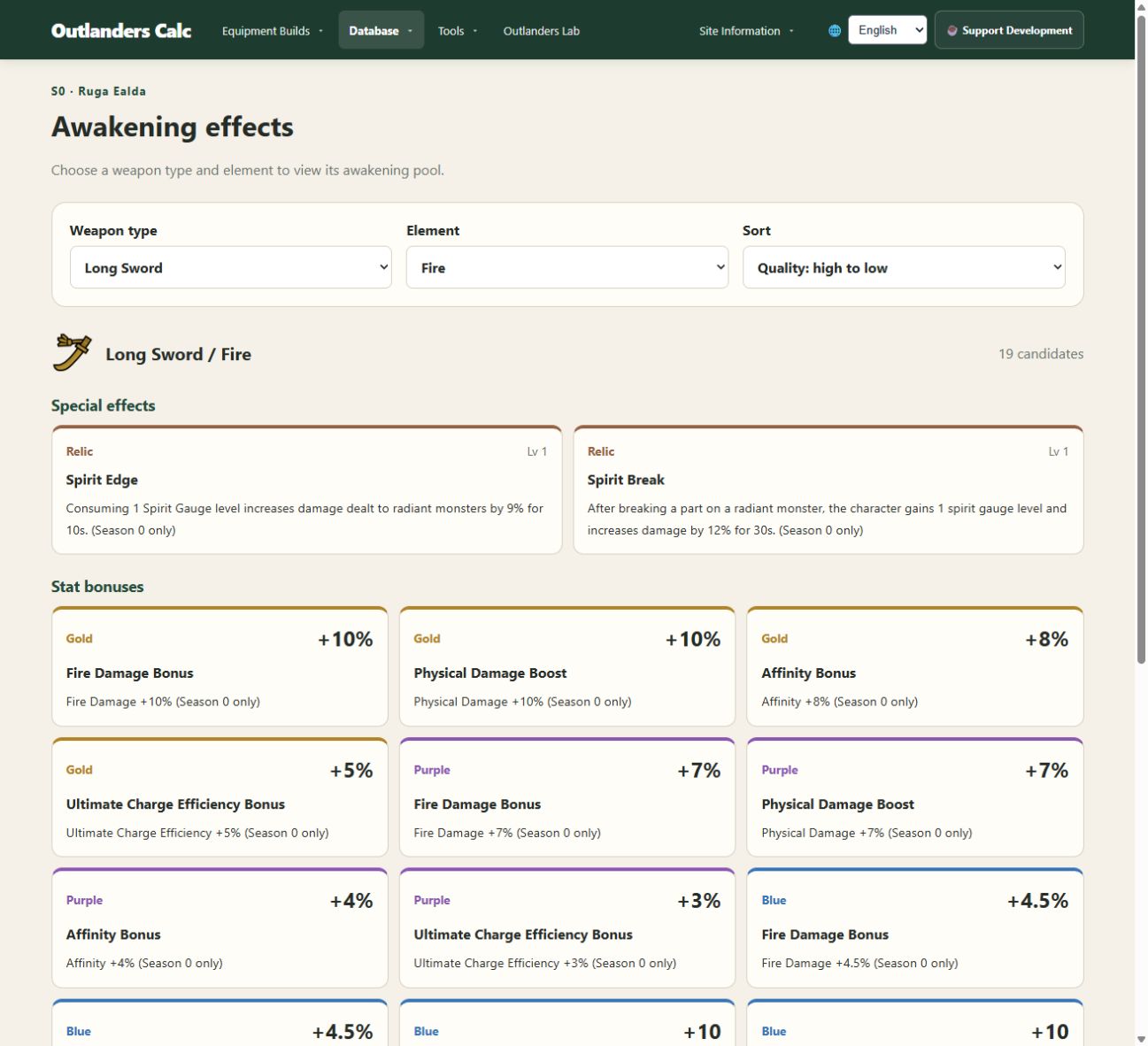
Select an eligible Ruga or Ealda weapon to see candidates matching its weapon type and element. To browse without building a setup, use the awakening effect list. Changing weapon type or element updates the list automatically. Sort by highest quality first or by bonus category.
- Rarity 10: 1 slot
- Rarity 11: 2 slots
- Rarity 12: 3 slots
- Rarity 13: 4 slots
- Rarity 14: 5 slots
Rarities 10–13 allow qualities up to purple. Rarity 14 also allows gold and special relics. You can equip one special relic of each type; different types may be equipped together. Ordinary bonuses can be equipped repeatedly.
Some effect descriptions fall back to English when a translation is not available.
Placement and details
Equipped slots are on the left and candidates are on the right. Tap a candidate to view its details and choose a destination or a slot to replace. Border colors indicate quality. Dragging on desktop and long-press movement on mobile are implemented, but long-press behavior on a physical phone is still being checked. If movement does not work, use tap-to-place instead.
If changing the weapon or rarity makes a selection ineligible, it stays in the saved setup but is not applied. Check its application status rather than assuming every visible slot contributes to the calculation.
Uptime, stacks, and charge stage
If an older saved build contains duplicates of a special relic, only the first copy of that type in slot order is active. Extra copies remain saved but are not applied or deleted. Other special relic types are unaffected. Check the active effects and their uptime.
The stack limits are 20 for Demonic Fang, 8 for Third Power Shot, and 10 for Chain Blitz. Enter at least one stack; use 0% uptime to compare an inactive effect. An unset stack count is treated as one. An explicit zero in an older save is not added, so check the notice. For Wind-up Slash, select the yellow charge stage at 7.5% or the orange stage at 10.5%.
What contributes to expected value?
Regular bonuses currently contribute physical damage, damage for the five elements, and affinity. An elemental bonus applies only when it matches the weapon's element. Resistance, ultimate charge efficiency, gauges, phials, and other non-damage components are not added directly to expected value.
The damage components of all 16 special relics are estimated at S0. The current tool conservatively applies them only when Radiant is ON; it does not add them when Radiant is OFF or unknown. This is a calculation rule, not a claim that every effect has the same in-game activation condition.
The active special relic of each type contributes its damage modifier weighted by its uptime. Duplicate copies of the same type do not multiply its effect. Proc chance and active-time percentage differ: a 20% trigger chance does not automatically mean 20% uptime.
Compare, save, and share
Add your configured result to the comparison list and choose a baseline build. Changing one part at a time makes it easier to understand the difference. If a result saved with older calculation data shows a warning, recalculate it with the current settings before comparing.
Builds, personal settings, and comparison conditions are saved separately in this browser. Awakening selections, rates, and settings are supported in saving, restoration, comparisons, and cards. They do not automatically sync to another device. Keep a JSON backup before clearing browser data.
A build URL shares the build, not all personal settings and comparison conditions. Use JSON to keep a complete settings backup. To share an image, choose a portrait or landscape build card and save the card for the currently selected conditions.
Find the right tool for your task
Open “Build,” “Database,” or “Tools” in the header to reach each feature. On mobile, open the menu first and choose the screen you need. The links below open the corresponding Outlanders Calc pages.
Equipment and skill databases
The Equipment Database shows weapon and armor stats and equipment skills. Filter by weapon type, armor slot, series, or name, then check the item's stats at each rarity. To find armor combinations that meet your skill requirements, follow the Skill Simulator instructions.
The Skill List explains standard skills and set effects by level. Search by name and check the effect at the level you need before using it as a search condition. Open the Skill Simulator.
Character data
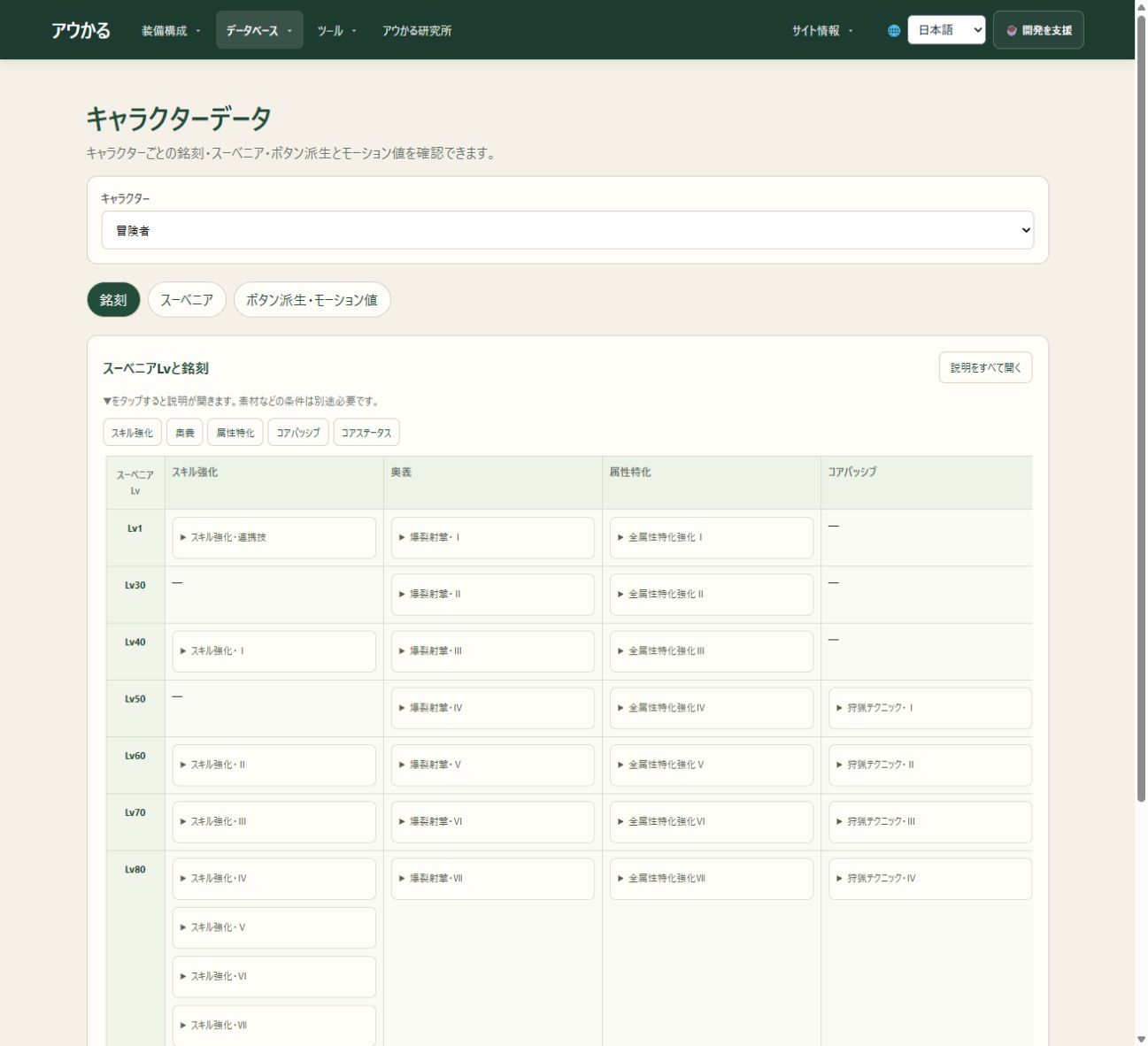
In Character Data, select a character and switch between Engraves, Keepsakes, and button follow-ups / motion values. Use ▼ to expand an Engrave's description. When viewing the protagonist's follow-ups, also check the weapon type. Browsing this database does not change your expected-value build. Select the settings you want to apply in the detailed expected-value tool.
Visage and Buddy databases
The Visage List lets you look up effects, substats, and Resketch options by name or quality. After checking the options, set your actual Visage layout and values in the detailed expected-value tool.
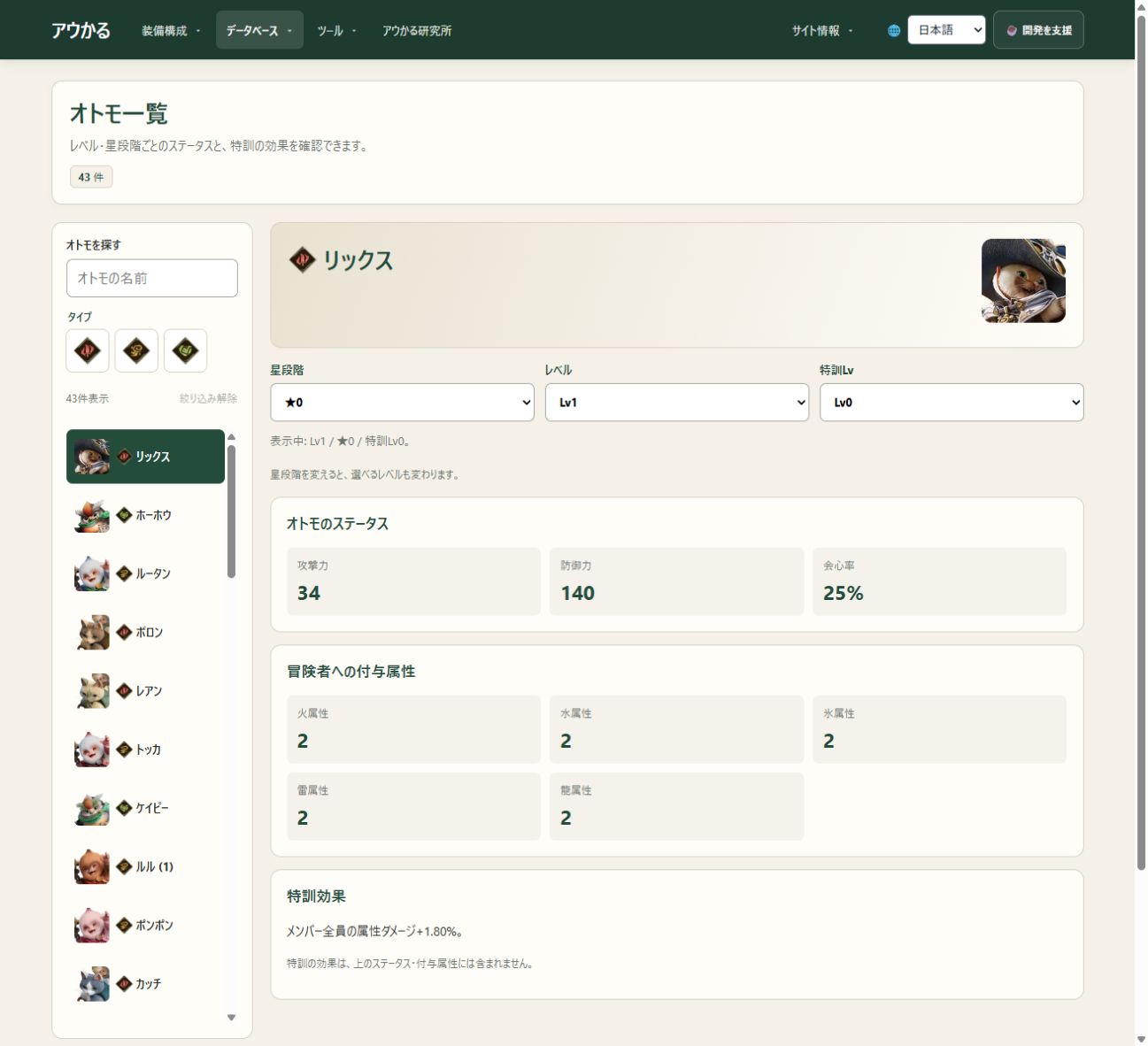
In the Buddy List, find a Buddy and check its level, star stage, and training effects. Keep the Buddy's own stats separate from bonuses to the protagonist. To compare equipment with those hunter bonuses included, continue to the detailed expected-value settings.
Awakening effect list
Select a weapon type and element in the Awakening Effect List to automatically display matching options. Sort by quality or bonus category and read the descriptions. Placement and rarity-based slot limits are covered in the awakening setup instructions.
Choose between simple and detailed calculations
The Damage Calculator estimates one hit from your in-game displayed attack and elemental attack. Enter the displayed stats, bonuses, the target part's physical and elemental hitzones, and the attack's physical and elemental motion values. You can then view normal, critical, and negative-critical results. Hitzones are entered manually, not retrieved automatically. A motion value of 100 is a reference value, not the value of a particular attack.
Expected Value Comparison lets you add builds one at a time using displayed stats, then compare physical and elemental contributions in bar charts. It does not include motion values. Do not interpret the results as actual damage per hit or DPS.
The Detailed Expected Value Tool builds a setup from equipment, character, Visages, Buddy, awakenings, and other settings. Start with the build setup instructions, then compare candidates in the Detailed Comparison Graph. See saving and card sharing for export options. The current public Database menu does not contain a separate hitzone list.
Arena party planning
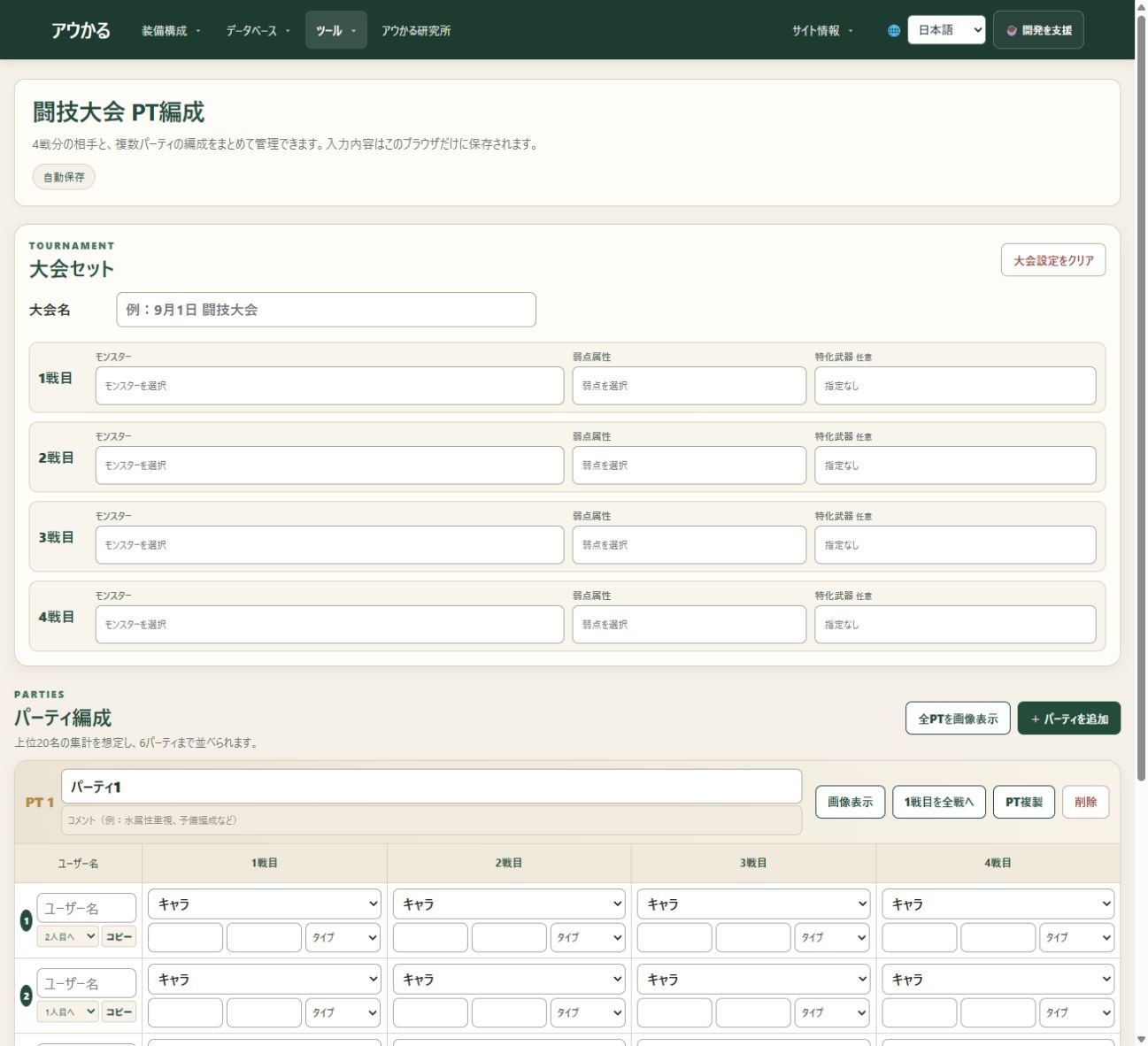
Arena Party Planning organizes opponents for four battles and plans for up to six parties. Name the event, then set each battle's monster, elemental weakness, and specialized weapon if needed. Next, enter member names and their characters or types for each battle. Options such as copying Battle 1 to every battle or duplicating a party reduce repeated entry. You can share the lineup as an image, but check the intended audience before publishing an image containing member names.
Party plans are saved automatically in this browser. They do not sync automatically to another device. Be careful with “Clear settings” and “Delete,” which remove the content you have created.
Arena attendance
Arena Attendance collects guild attendance for the next four Saturdays. Open the option to create a guild attendance sheet, enter the guild name, and create it. Save both the administrator link and member link that are issued.
This feature uses dedicated links and does not require a login. Do not publish the administrator link; give members the participation link instead. To join an existing attendance sheet, use the member link provided by its administrator. This is separate from the browser-only autosave used for party plans.
Calculation model and site information
Outlanders Calc Research introduces the calculation model in Japanese. Use the damage formula guide (Japanese) and the tool's “Formula and assumptions” section to check your comparison conditions. See About for site policies and Privacy and advertising for information about storage and ads.
Troubleshooting checklist
- Check weapon type, element, HR, and rarity.
- Check elemental matching, quality, slot count, and duplicate relic limits.
- Check for 0% or unset uptime, and review stacks and charge stage.
- For special relics, check Radiant is ON and read any warnings.
- Check comparison conditions and whether the saved result uses current data.
As of November 13, 2026. Available options and supported calculations may change as the game and tool are updated.